Mini Network Scanner icon

Mini Network Scanner

See every device on your local network at a glance — addresses, names, vendor, open ports and live latency.
★ Free 🖥️ macOS native 🔒 Sandboxed & privacy-respecting ⚡ No root required
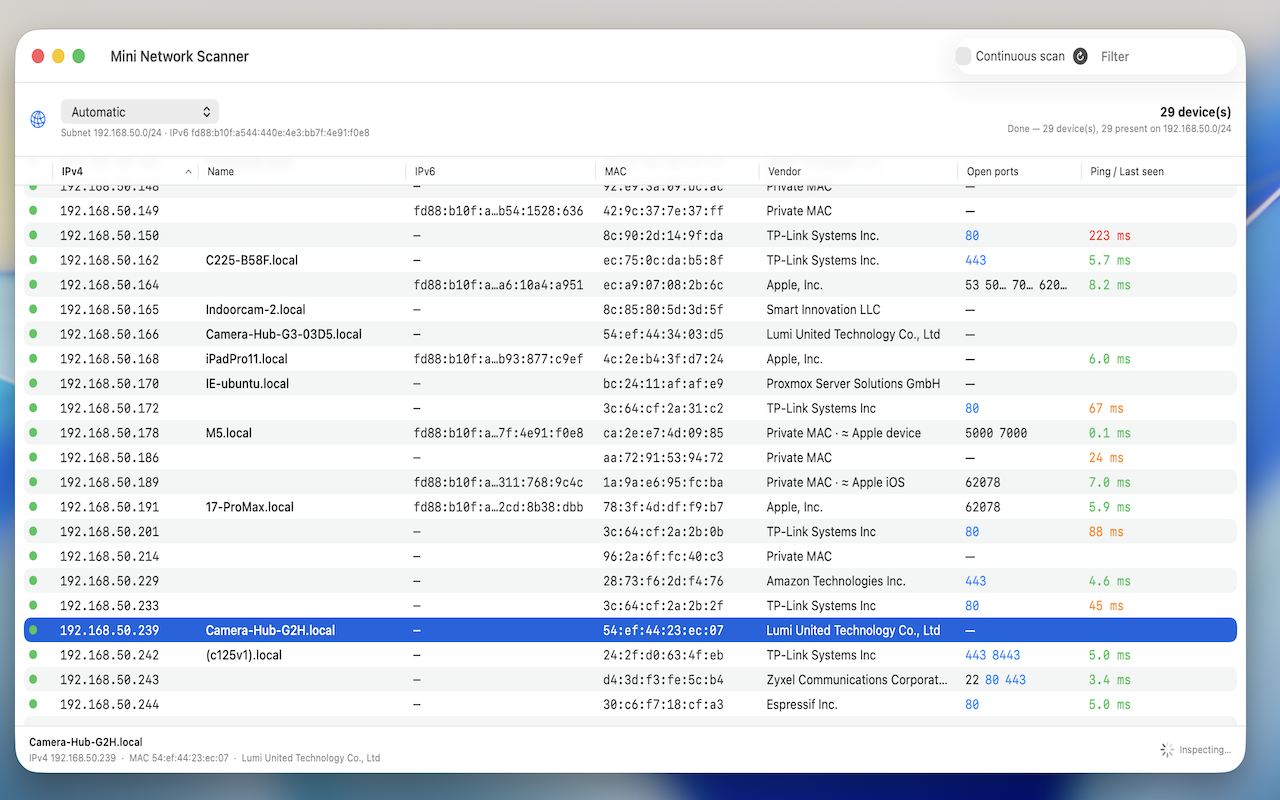
Mini Network Scanner showing a table of discovered devices

Everything about your network, in one window

● Fast device discovery

A quick discovery pass finds every host on the subnet in seconds using ARP/NDP and a lightweight TCP sweep — even firewalled devices.

● All the details

IPv4 and IPv6 addresses, MAC address, hardware vendor, open ports and live ping — sortable and searchable.

● Real device names

Resolves hostnames through reverse DNS, mDNS / Bonjour and NetBIOS — so you see “Living-Room-TV”, not just an IP.

● Smart identification

The full IEEE vendor database plus type inference — it can still guess “Apple iPhone” or “Printer” even behind a private, randomized MAC.

● Continuous monitoring

Turn on continuous scan to watch devices arrive and leave in real time, with a “last seen” timestamp for anything that drops off.

● Made to be handy

Click a web port to open it in your browser, give any device a custom name, copy any field, and pick your network interface.

How it works

  • Discovery — reads the kernel ARP/NDP neighbor tables and sweeps the subnet over TCP.
  • Names — reverse DNS, then mDNS/Bonjour via the system resolver, then NetBIOS.
  • Vendor — bundled IEEE OUI database (~40,000 prefixes).
  • Ping — sandbox-safe TCP round-trip latency.
  • Privacy — everything runs locally; nothing leaves your Mac.

Requirements

  • Price — free, with no ads and no in-app purchases.
  • macOS — a recent version.
  • Local network access — to scan your subnet.
  • No configuration — it picks the active interface automatically.
  • App Sandbox — runs with only the network-client entitlement.

Help

Getting started

  • Launch the app — it shows known devices from the cache instantly, then runs a full scan automatically. The complete list appears within a few seconds.
  • Rescan any time — press ⌘R or click Scan to refresh.
  • Continuous scan — tick the checkbox to keep rescanning in a loop and watch devices come and go live.
  • Choose an interface — the pop-up at the top left; Automatic uses the interface carrying your internet connection.

Reading the table

  • ● Green dot — present on the network right now.
  • ● Gray dot — not seen in the last scan; the Ping / Last seen column then shows how long ago.
  • Open ports — web ports (80, 443, 8080, 8443) are blue links; click one to open the page in your browser.
  • Vendor — real manufacturer when known; “Private MAC · ≈ type” for privacy-randomized addresses; the raw OUI prefix when unknown.

Handy actions

  • Rename a device — double-click a row (or right-click → Rename…). Custom names are kept across scans and restarts, tied to the MAC address.
  • Copy a value — right-click a row to copy the IPv4, IPv6, MAC, name, or the whole row.
  • Filter — the search field matches names, addresses, MAC and vendor.
  • Inspect a device — selecting a row runs a priority re-scan of just that device (ports, ping, name, MAC).

Troubleshooting

  • A device shows only an IP — it doesn’t answer any name protocol (reverse DNS, mDNS, NetBIOS). You can give it a custom name.
  • No ping value — the device is present (green) but blocks every probed TCP port, so latency can’t be measured.
  • Fewer devices at launch — the instant view is the cache only; the full list fills in once the scan completes.
  • Still stuck? — email info@pghsoftware.be.